First Steps: Getting Started with EZ Edge CMS
Congratulations on deploying your edge-native CMS! You are now running a blazing-fast, zero-build website powered entirely by Cloudflare Workers and KV.
Here is how to set up your site in under 5 minutes.
Step 1: Initial Setup (Create Admin)
Once your Cloudflare Worker is deployed, navigate to your provided *.workers.dev domain (or your custom domain) and head to the admin panel:
- Go to: https://your-domain.workers.dev/admin
On your very first visit, you will be automatically redirected to the Initial Setup screen to secure your installation.
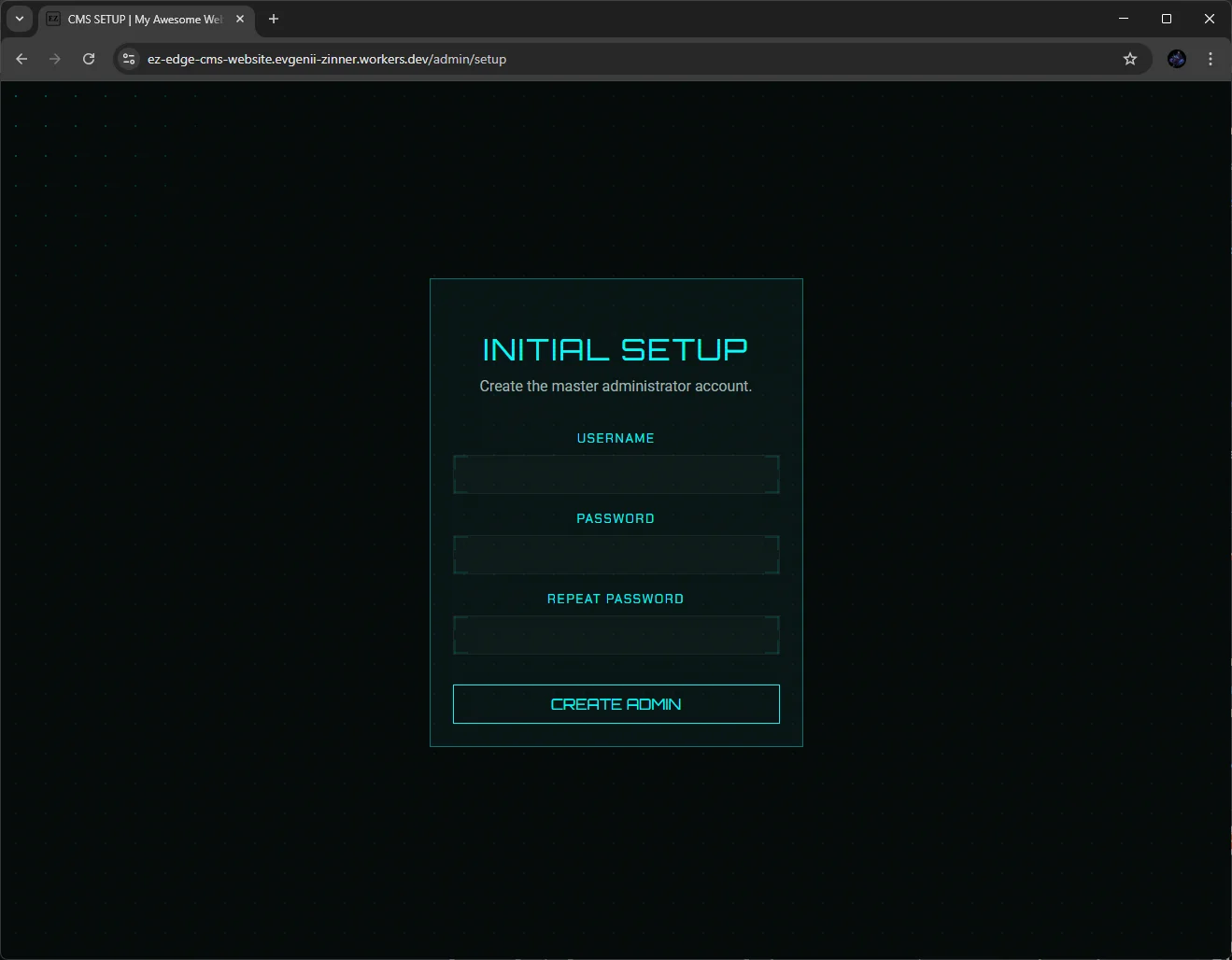
- Enter your desired Username.
- Enter and repeat your Password.
- Click Create Admin to establish your master administrator account.
Step 2: Site Onboarding
Right after securing your account, you will be taken to the Site Configuration onboarding screen. This sets up your global variables and SEO defaults.
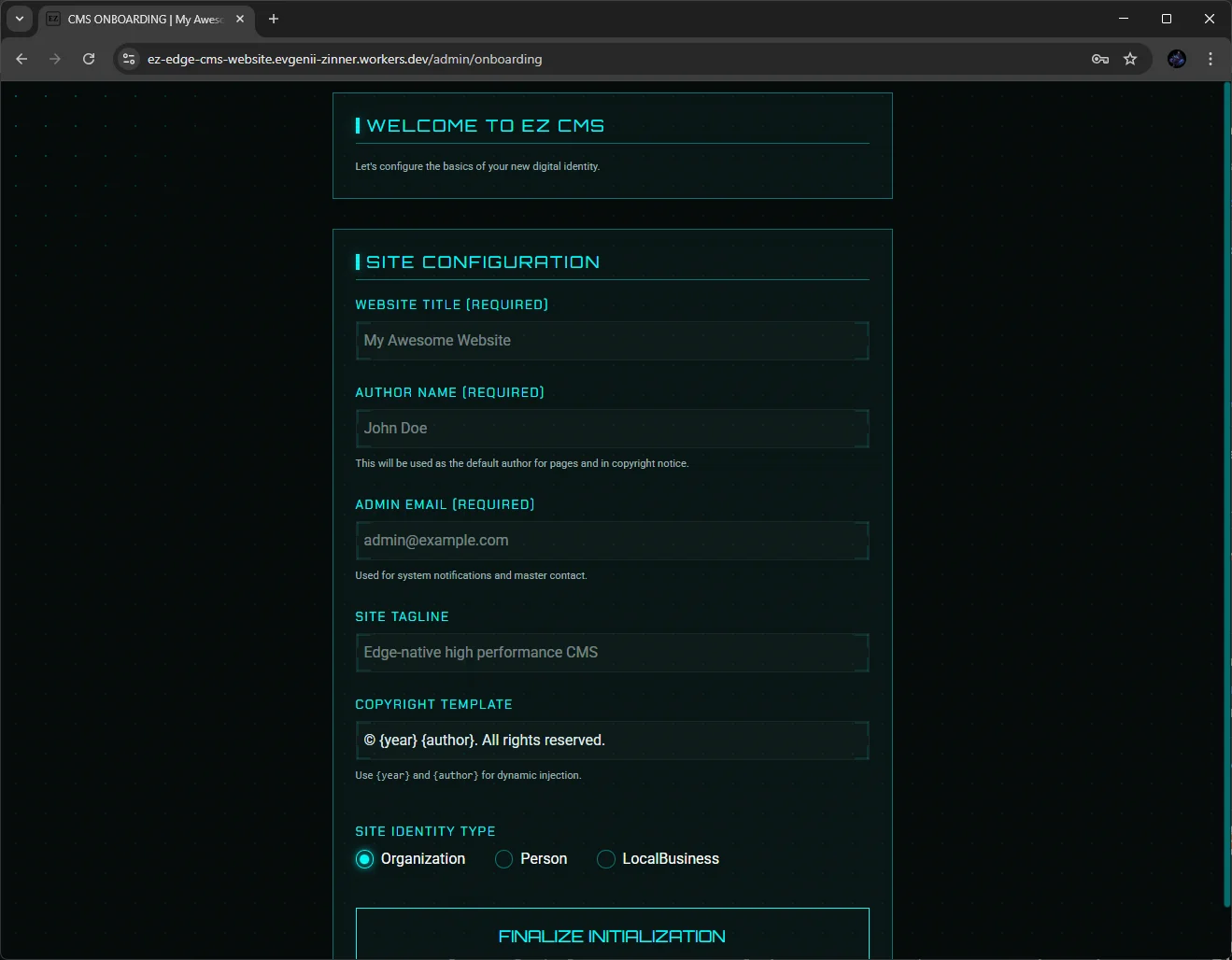
- Enter your Website Title and Site Tagline.
- Add the Author Name and Admin Email.
- Configure your Copyright Template (using dynamic {year} and {author} tags).
- Select your Site Identity Type (Organization, Person, or LocalBusiness) for automatic JSON-LD Schema generation.
- Click Finalize Initialization.
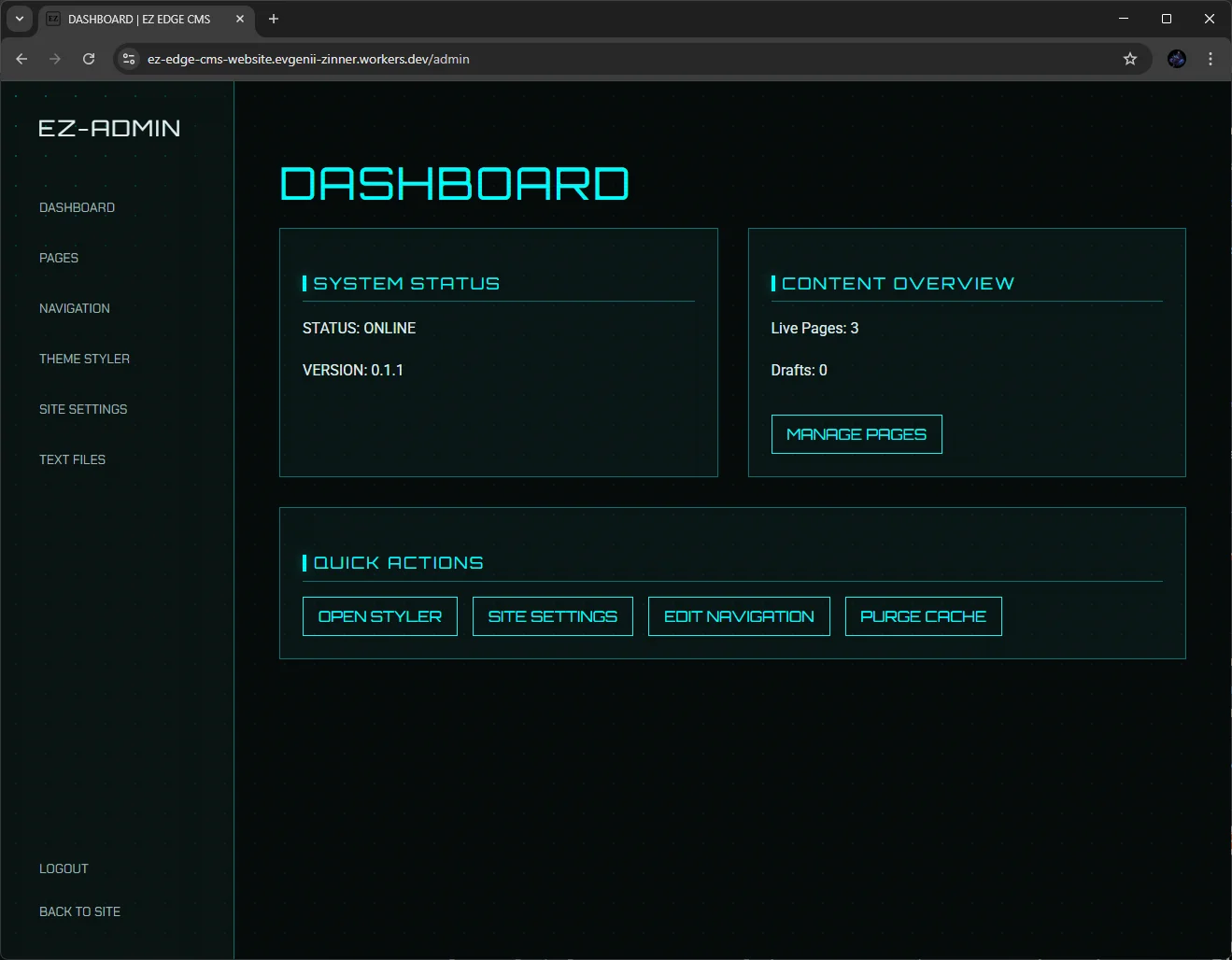
Step 3: Explore the Dashboard
Welcome to the EZ-Admin interface! From your central dashboard, you can monitor your System Status (version and uptime), view your Content Overview (live pages vs. drafts), and access Quick Actions like opening the Styler, editing navigation, or purging the cache.
Step 4: Configure Your Theme & Navigation
Before writing content, let's give your site a personality and structure.
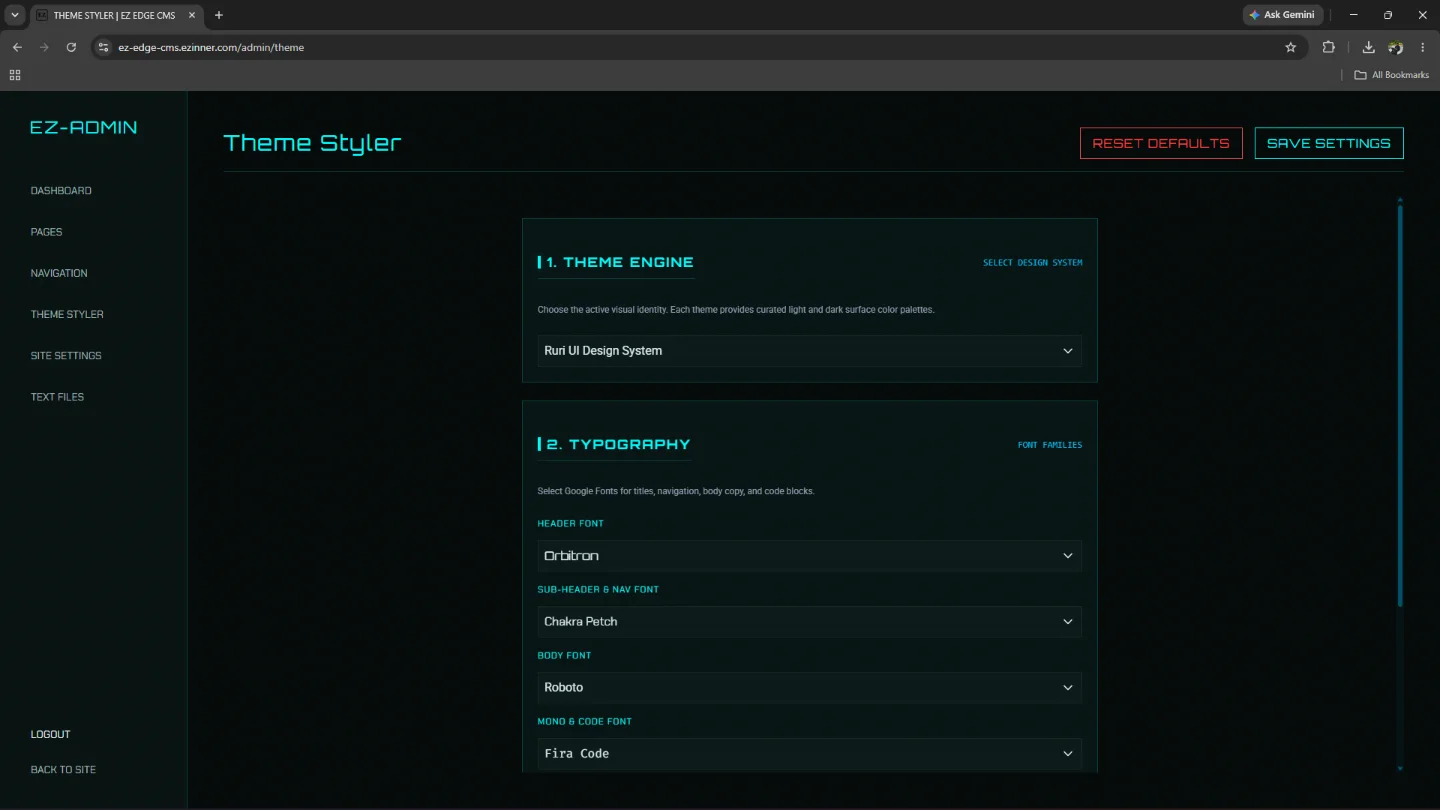
- Navigate to Theme Styler in the left sidebar to pick your visual styling. You can chose between RURI (scif-fi themed) and ASTRYX (clean Meta style) and pick typography. Booth themes have dark/light built-in functionality.
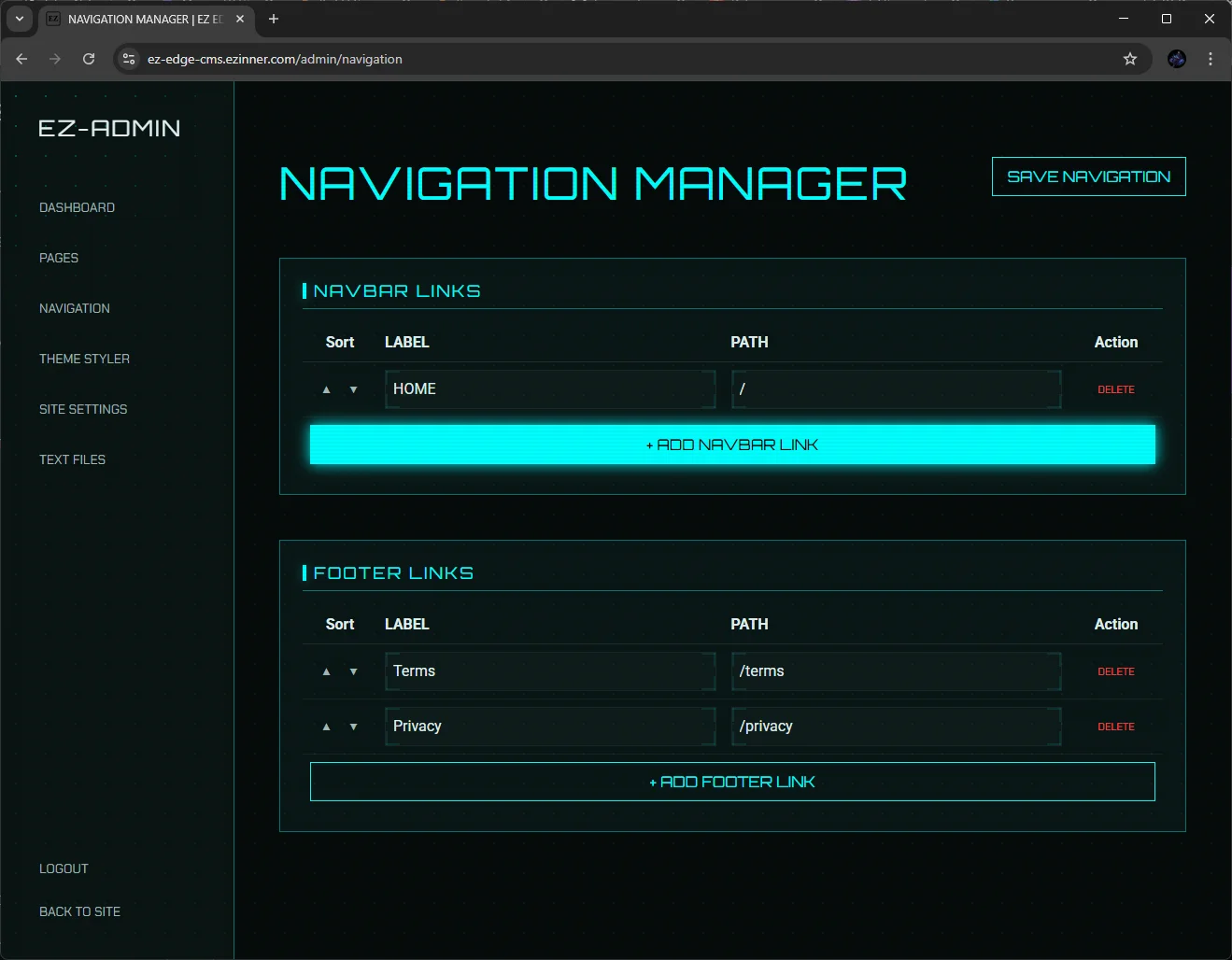
- Go to Navigation to build out your header and footer links so visitors can traverse your new site.
Step 5: Write Your First Page
It's time to use the block editor.
- Go to Pages and open your Home Sector (Index) or create a new page.
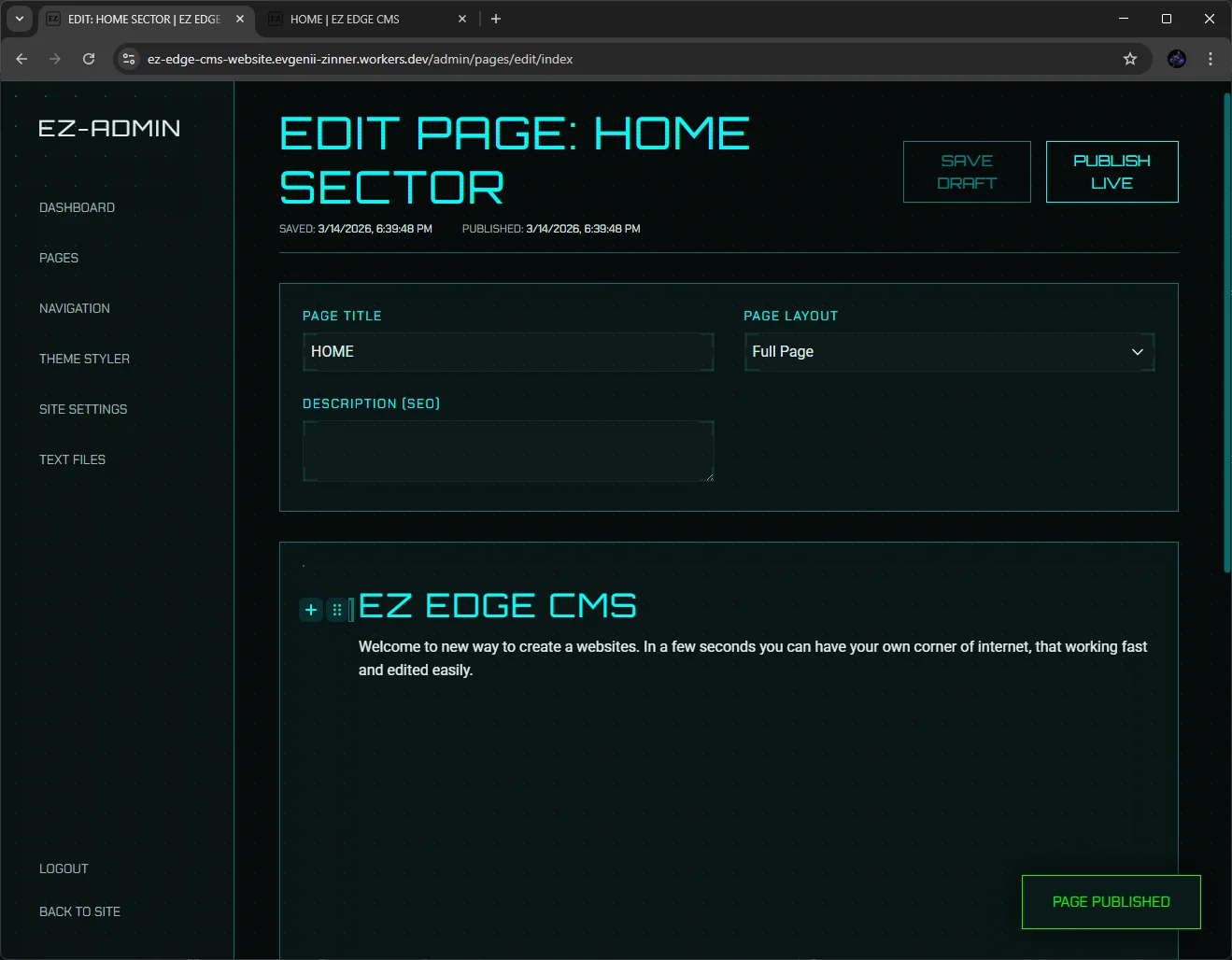
- Edit your Page Title and Description (SEO).
- Use the block editor interface to add Headers, Paragraphs, Images, and Lists.
- Click on the block tunes (the icon next to the plus sign) to tweak individual block designs on the fly without writing a single line of CSS.
Step 6: Publish and Marvel at the Speed
Click Publish Live.
Open a new window and navigate to your public page. Notice how it loads instantly? That is the power of Server-Side Rendering (SSR) right at the edge, fetching content from a KV store milliseconds away from your user.